

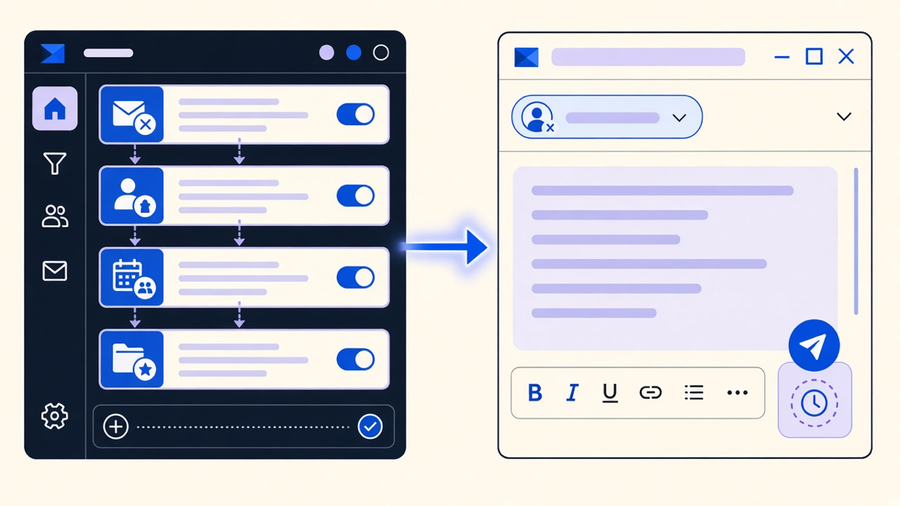
Automating email means setting a condition once so a message goes out later without you clicking send: a rule in Outlook, a recurrence setting on a draft, a script in Gmail, or a mass-send tool for a whole list. Which method you need depends entirely on the job. Outlook rules sort and reply to mail that already arrived. Recurrence and Power Automate send new mail on a schedule. Gmail needs an add-on or script for anything past “schedule this one email.” And mass sends are a different category entirely, one that lives or dies on list hygiene, not on which button you clicked. Treat these as four separate tasks and the setup takes twenty minutes. Treat them as one generic “email automation” project and you end up buying a platform for a job a native rule already does.
How to automate emails in Outlook
Outlook splits automation into three unrelated features that happen to live in the same app, and mixing them up is the most common setup mistake. Rules handle incoming mail: open the File tab, go to Manage Rules & Alerts, and build a condition (sender, subject, keyword) paired with an action (move, forward, flag, mark read). That is inbox triage, not sending. For outgoing automation, Outlook’s Automatic Replies feature covers the out-of-office case, a canned response fired while you’re away, with a start and end time you set once.
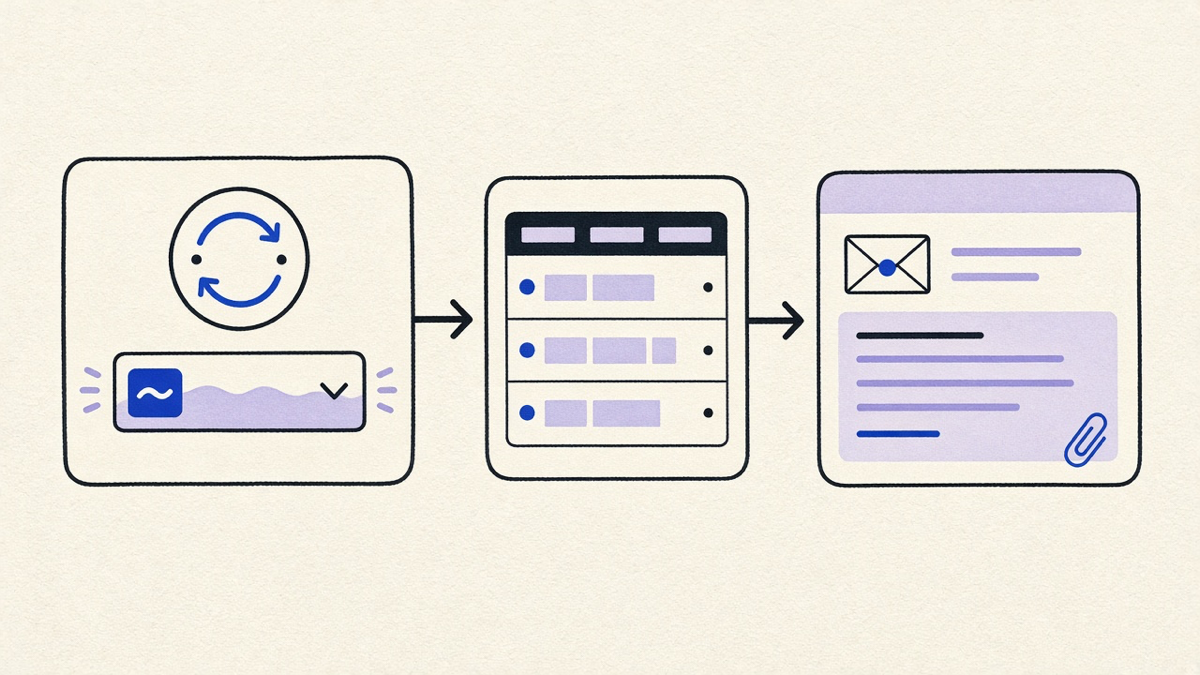
Neither of those sends a new, original message on a schedule. For that you need Microsoft Power Automate, which runs outside Outlook itself and connects to it as a trigger source. Power Automate’s own documentation lists the core email flows worth building: sending from your account or from a shared mailbox, sending an email with voting options that another step in the flow has to capture and save, building an approval process with automatic reminder emails to approvers, and assembling a daily digest by pulling data into an HTML table and dropping that table into the email body. None of these need a developer. They need a trigger, a condition, and an action, wired through the Power Automate flow builder.
The add-in layer sits underneath both. Outlook add-ins can schedule sends, generate templates, and merge personalization fields into bulk mail, but they are a grab bag, not a category, and picking one means matching it to the specific job (scheduling versus templating versus mail merge) rather than assuming any add-in does all three. An add-in built for calendar scheduling will not do mail merge, a detail that trips up people who install the first thing that shows up searching “outlook automation” and wonder why nothing merges.
How to send recurring emails in Outlook
Recurring emails in Outlook use the same Recurrence control that drives calendar invites, just applied to a draft instead of a meeting. Compose the message, open the Options tab, click Recurrence, and set the frequency, start date, and end date. Outlook then holds that draft and fires it on the schedule you defined, no add-in required. This is the right tool for a fixed-cadence internal message, a weekly team update, a monthly reminder to submit expenses, where the content barely changes and the audience is stable.
It is the wrong tool the moment the content needs to reflect anything that happened since the last send. A weekly digest that has to summarize this week’s calendar events, ticket volume, or sales numbers cannot run on a static recurrence rule, because the message body was written once and stays frozen. That is exactly the case Power Automate’s own guidance calls out: pull the data with a Select action, format it into an HTML table, then hand that table to a Send an email action. Recurrence answers “when.” Power Automate answers “when, and with what changed.” Confusing the two is why a recurring status email quietly turns into a weekly copy-paste chore six months after someone set it up with good intentions.
How to automate emails in Gmail
Gmail’s native tools stop earlier than Outlook’s. There is a scheduled send button for a single message, and sending recurring emails in Gmail on a fixed cadence has been a native option since 2023, but nothing built in resembles Power Automate’s condition-and-action flow builder. To get triggered, data-driven sends in Gmail, most people reach for Google Apps Script, a free scripting layer tied to Sheets and Gmail that can read a spreadsheet row, build a message, and send it on a time-based or form-submit trigger. It is the closest free equivalent to what Outlook gets from Power Automate, minus the drag-and-drop interface: you write a short script instead of wiring blocks together.
The tradeoff is real. Apps Script requires touching actual code, however short, and Google enforces daily sending caps per account that a script can hit fast on a large list. For a five-person team sending internal reminders, that ceiling never matters. For a list-driven newsletter, it does, and that is the signal to move off Gmail rather than fight the quota. My take here: most small teams reach for a marketing platform before hitting any limit Gmail or Apps Script would enforce. If the job is under a few hundred sends a day and the logic is “if this row changes, send that email,” a script costs nothing and takes an afternoon. Buy the platform once volume or segmentation logic outgrows what a spreadsheet can track, not before.
How to send mass emails without wrecking deliverability
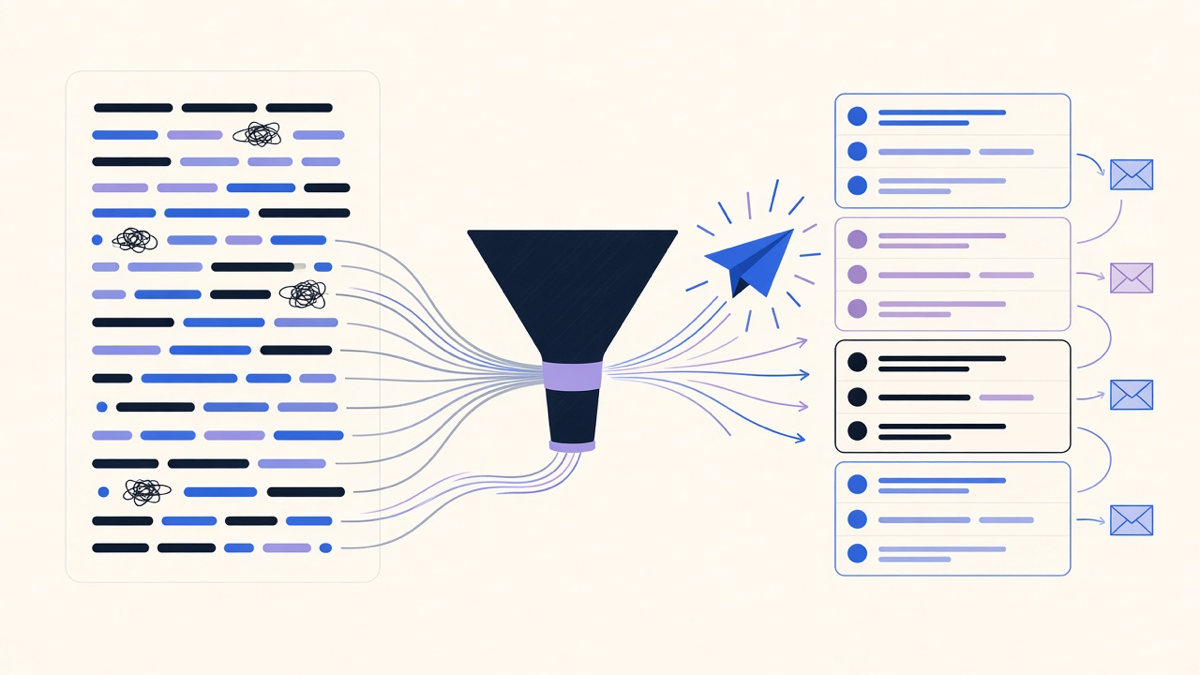
Mass email is a different problem from everything above, because the failure mode is not “did the automation fire,” it is “did the message land in an inbox at all.” Simplelists’ guidance on this is blunt: a clean, well-organized distribution list is “the backbone of every campaign,” and the automation on top only works if that list gets reviewed regularly to strip duplicates, bounces, and unsubscribes. A trigger firing correctly against a rotten list still produces a bounce report, not a sent campaign.
The mechanical steps are the same regardless of platform: pick a sending tool built for bulk delivery rather than personal webmail, import and segment the list by role or interest rather than sending one blast to everyone, build a reusable template so content changes without rebuilding structure, and test the send before it goes to the full list. Consent matters here in a way it does not for a one-to-one triggered email. GDPR and similar rules require clear consent and a visible unsubscribe link on anything sent at list scale, and skipping that step is how a mass send turns into a spam complaint that hurts every future delivery, triggered or not, from the same domain.
This is also where sales email automation and mass email get confused constantly. A sales cadence sends to a handful of known prospects with a stop condition on reply. A mass send goes to a whole list on a schedule with no per-recipient stop logic. Wiring cadence rules into a bulk sender, or bulk-sender habits into a cadence tool, is how “automation” ends up sounding like spam in one direction or getting ignored in the other.
Picking the right layer instead of the biggest tool
The pattern across every method here is the same: match the job to the layer, not to the most impressive-sounding tool. Rules handle inbox sorting. Recurrence handles fixed-content, fixed-schedule sends. Power Automate and Apps Script handle anything where the message content depends on data that changes. Mass-send platforms handle list-scale delivery and compliance. Triggered and automated emails that react to a specific customer action are a fifth category on top of all this, and treating a triggered welcome sequence like a recurrence rule is why so many onboarding emails feel a beat late.
Most vendor guides skip this sorting step because a platform that does everything is easier to sell than a five-minute Outlook rule. AI does not change the sorting logic either. It drafts a message body or summarizes a digest table well, but it does not decide whether you need a rule, a recurrence, a script, or a full email automation tools platform. That decision still comes down to volume, data-dependence, and who is on the list. When the automation needs to react to a live signal, like a form submission updating a CRM record mid-sequence, that is also the point to wire email into CRM workflows instead of stacking more rules inside the inbox itself.
Start with the free native tool for the job at hand. A rule for sorting, recurrence for a fixed cadence, Apps Script for a small data-driven send, a real mass-mail platform only once list size or compliance risk demands it. Upgrading later costs an afternoon. Buying a platform now for a job Outlook already does costs a subscription you’ll be explaining to finance in six months, and by then nobody remembers why it got approved.